Identity
How passkeys work, and why you should use them
Sign in with a fingerprint, face or PIN, without typing a password. Learn how passkeys work, why they resist phishing, and how to avoid getting locked out.
Think of a passkey as a digital key that only fits the account it was made for. Your phone or password manager keeps the key, and you approve its use when you sign in. A fake website cannot use it, just as a copied front door does not make your key fit its lock.
Why switch? A password is more like a secret phrase you tell the person at the door. If an impostor convinces you they are the doorman, they can learn the phrase and use it themselves. A passkey lets you prove your key fits without handing it over. There is no phrase to remember, reuse or accidentally give away.
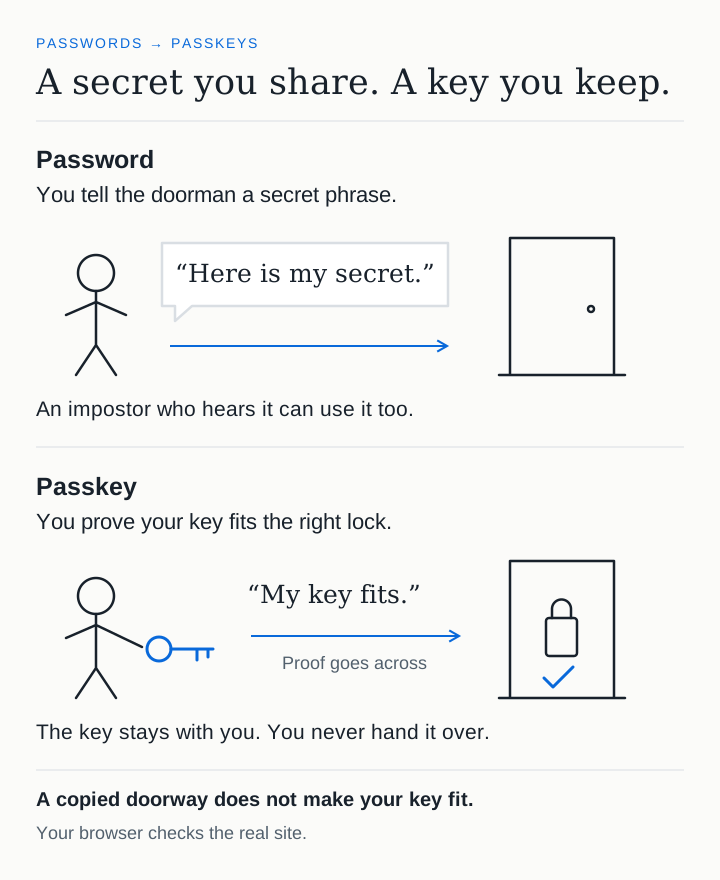
Here is what that looks like in practice.
You open an account’s sign-in page. Instead of asking for a password, it offers a passkey. You approve the request with your fingerprint, face or device PIN, and you are in.
It feels much like unlocking your phone. Behind that familiar action, though, something different is happening: your device is proving that you can access the account without sending a password to the website.
That makes signing in easier. It also addresses a problem that strong passwords and verification codes cannot fully solve: a convincing fake sign-in page.
What is a passkey?
A passkey is a digital credential you use to sign in to an account. You do not need to invent it, memorise it or type it into a form.
When you create one, your device or passkey provider generates two mathematically linked keys. Your provider might be the password manager built into your phone or a separate password manager that supports passkeys.
- The public key is stored by the website. It lets the website check that a sign-in is valid.
- The private key is kept by your device or passkey provider. It creates the proof needed to sign in.
The useful part of this relationship is that the public key can check the proof without revealing the private key. Stealing the public key from the website does not give an attacker what they need to sign in as you.
What happens when you sign in?
The process usually takes only a few seconds:
- The website sends a fresh challenge. This is a random piece of data to be used for this sign-in attempt.
- Your browser checks which website is asking. The passkey can only be used for the service it belongs to.
- You approve the request. Your fingerprint, face or device PIN unlocks use of the passkey.
- Your device creates a digital signature. It uses the private key to sign the challenge. The website checks that signature with the public key and signs you in.
The private key is not sent to the website. Neither is your fingerprint, face scan or device PIN. Those checks happen locally to authorise use of the passkey.
That distinction matters: your fingerprint is how you unlock the passkey, rather than something the website stores as your login.
For readers who want the technical detail, this uses FIDO standards and WebAuthn, the browser interface for this kind of authentication. Google’s passkey overview explains the key-pair model and encrypted syncing.
A convincing fake page still has the wrong identity
Imagine your usual service is at example.com. An attacker sends you to example-login.com, with the same logo and a convincing sign-in form.
You could type your password into either page. The fake page could also ask for the six-digit code from your authenticator app, then immediately pass both to the real website to sign in as you.
A passkey works differently. The browser checks the site’s identity, so copying the logo and sign-in form does not give the fake page access to the real site’s passkey.
This is what phishing-resistant means here: the sign-in mechanism helps stop you from giving an impostor something they can use to access the real account. It does not depend on you spotting every suspicious address. FIDO’s specifications describe how correctly implemented sign-ins provide that protection.
Each passkey is also specific to an account and service. There is no reused password for an attacker to try against your email, shopping account and business systems.
Your passkey might be synced, or stay on one device
A synced passkey can be made available on your other devices through your passkey provider. This can make replacing a phone much easier, provided you can recover access to the account that manages your passkeys.
A device-bound passkey stays on the device that holds it. One example is a compatible physical security key: a small device you plug into your computer or tap against your phone. You can use that key with different computers, but if you lose it, you need another registered sign-in or recovery method.
These are different storage and recovery choices. Both can provide phishing-resistant sign-in. The FIDO Alliance’s passkey guide explains the distinction.
Do not assume a passkey will automatically appear in every browser or password manager you use. Check the devices you actually need before relying on it.
Does this replace two-factor authentication?
Two-factor authentication asks you to prove your identity in two different ways, commonly with something you know and something you have. A password followed by a code from your phone is a familiar example.
A passkey sign-in can combine two factors in one flow: access to the key and a local check using your PIN, fingerprint or face. You may not need a separate code, even though the sign-in still involves more than one factor.
For a business, the details matter. Registering a passkey does not automatically mean staff must use it, or that every other sign-in option meets company policy. Administrators should check the settings in their sign-in system. Microsoft’s Entra passkey FAQ covers deployment and policy considerations.
Recovery and fallback still matter
A passkey makes signing in safer, but it cannot protect you from everything. Malware on your computer may still be able to access an account you have already signed in to. A scammer could still persuade you to transfer money or share sensitive information.
The other routes into the account matter too. If an attacker can reset access through a poorly protected email account or persuade support to bypass the checks, the strength of the passkey does not fix that route.
If you sync passkeys, protect the account that manages them too. Keep your devices updated, and understand how you would regain access after losing a device. NIST, the US National Institute of Standards and Technology, discusses these risks in its guidance on syncable authenticators.
Start with one important account
Choose an account you use regularly that offers passkeys. Email is a useful starting point because it often controls recovery for other accounts.
Add a passkey from the service’s own security settings. Then test signing in on the devices you use, and check your recovery options before removing any existing method. Where supported, add a second passkey on a separate device or security key. If the service provides recovery codes, store them somewhere you can reach even if you lose your phone.
For a business rollout, start with a small group. Check that people can set up their passkeys and recover access after losing or replacing a device. Decide where work passkeys may be stored, and how access will be removed when someone leaves.
You do not need to move every account at once. Start with one, make sure recovery works, and expand from there. Keep unique passwords and multi-factor authentication on services that do not yet support passkeys.